Callback requests
Overview
The national Medicare Mental Health website enables a consumer to create a callback request that will appear in the Medicare Mental Health Intake System and be assigned to their local PHN.
The callback request process begins after the consumer completes a ‘quiz’, in which consumers answer questions about their mental wellbeing. The quiz was developed by Melbourne University and uses the Patient Health Questionnaire 9 (PHQ-9) and Generalised Anxiety Disorder 7 (GAD-7). The responses from a completed quiz are analysed using an algorithm and options for next steps are presented to the consumer.
If the quiz analysis results in a certain range of severity (approximately equating to IAR level 3 or 4), one of the options is to request a callback from a mental health service.
If the result indicates mild or no distress, then the website will suggest digital resources. For a severe result, the website will suggest urgent and digital options, in addition to the callback request. The urgent options include: 000, 24/7 crisis helplines (e.g. Lifeline), and State-based helplines and suicide prevention support services.
The national Medicare Mental Health Check In website enables a consumer to create a callback request that will appear in the PMHCIS and be assigned to their local PHN. The callback request process begins after the consumer uses the ‘I need help now’ button to request a call back from Medicare Mental Health while providing their postcode, preferred name, phone number and preferred contact days and time.
Notifications
Pop up
When an intake user logs in, the system will check for uncontacted callback requests allocated to any of the PHNs the user’s account is assigned to.
An uncontacted callback is defined as: an incomplete Contact created by the national website that has less than 3 callback attempts.
A Contact is completed when it is given a value in the Outcome field.
The screenshot below shows how the notification will look. It will appear in the top right of the screen. A user can click on the “Contact created …” link to display the usual Edit contact screen.
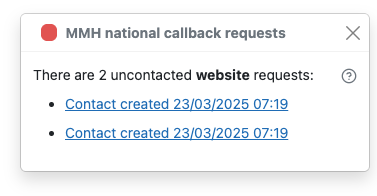
In the screenshot above, the user is logged in to North Western Melbourne PHN. Because that user is also able to see Eastern Melbourne PHN records and there are uncontacted EMPHN callbacks, the notification includes the contact created for EMPHN:
The NWMPHN contact cannot be viewed until the user switches to NWMPHN. The link beneath the “Contact created …” text will switch the user directly to NWMPHN.
Distinguishing between national website callback and Check In callbacks
To distinguish between national website callbacks and Check In callbacks, you can refer to the pathway field.
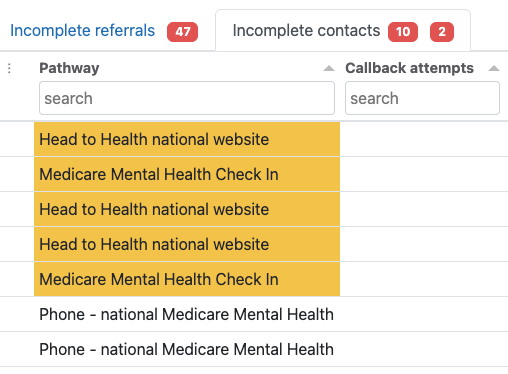
Incomplete contacts tab
Another type of notification will be a new counter badge appearing next to the Incomplete contacts tab label. The screenshot below shows that there are 4 incomplete contacts. Of those 4, 1 is an uncontacted callback request.

Edit contact screen
When a contact is created by the national website, the Edit contact screen displays information from the details completed in the national website form. Consumers will have the option of not sending their quiz data, so the details will only appear if they chose to share them. The screenshot below shows what the screen looks like when the consumer has specified preferred days of week/times to be contacted and shared their quiz data.
When a contact is created by the Check In website, the Edit contact screen displays information from the details completed in the form.
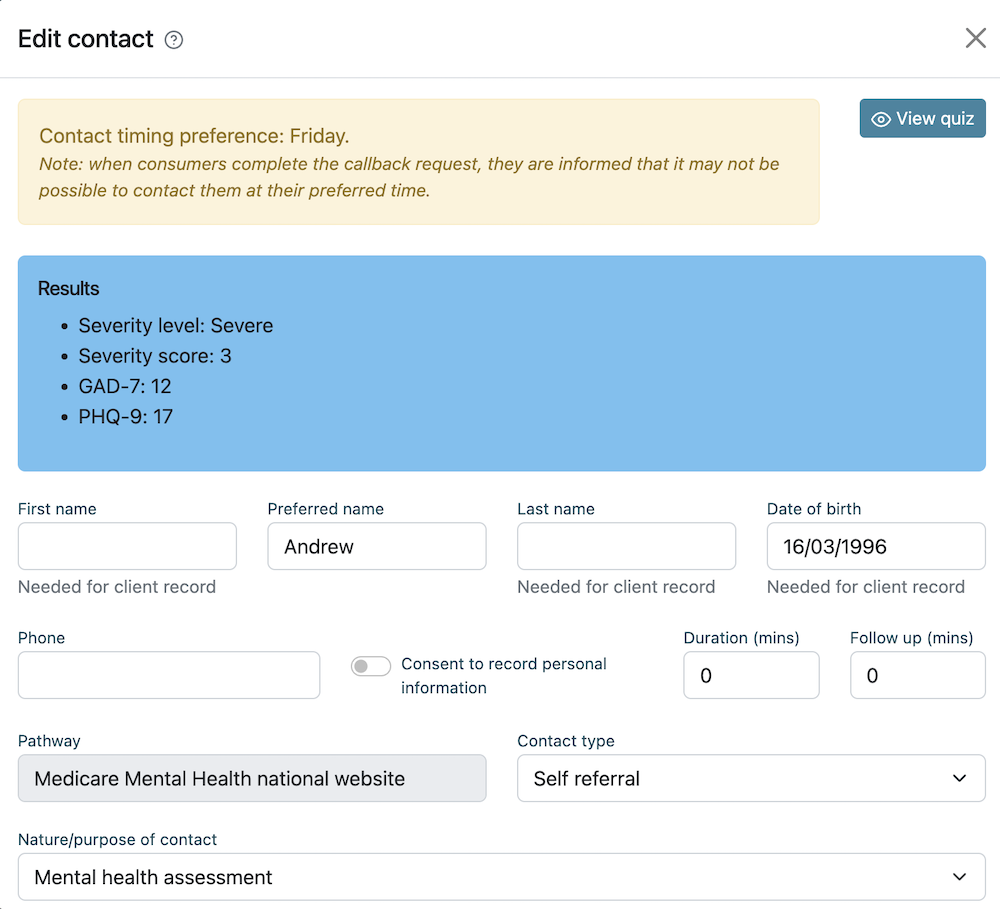
Note that the form on the national site only has a “Preferred name” field. It does not split the name into first/last. The Pathway field is filled in automatically and cannot be changed.
Callback attempts
Each time you attempt to call back a contact, you should enter a callback attempt activity. To enter an activity, add a new Callback attempt note. You don't need to write anything in the note field. When finished, save the Contact record. The screenshot below shows saved callback attempts.
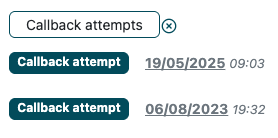
When you click on the Incomplete contacts tab, you will see that the Callback attempts column will keep track of the number of callbacks:
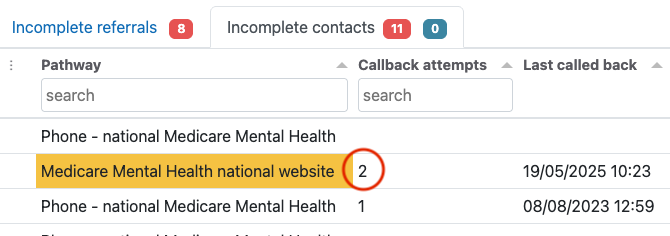
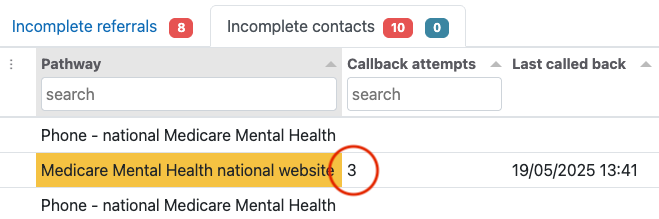
Once 3 callback attempts are made, the Contact will no longer be considered an uncontacted callback. It will disappear from the notification pop up and the badge number will reduce by one. The screenshot below shows the Incomplete contacts tab with no uncontacted callbacks.
Completing a callback
In all other respects, a callback request Contact is the same as other Contacts. It will be removed from the Incomplete contacts tab when it has been completed (i.e. it is saved with a value in the Outcome field).
Progressing to a referral
From here, contacts and referrals are managed as usual, given the Check In is not currently available as a referral outcome. Please refer to scripts provided by DoHDA to advise consumers of this and suggest alternative options for support.
Further information
NWMPHN can support with questions on technical functionality of the callback requests and related records within the PMHCIS, please contact us at pmhcis.support@nmwphn.org.au