Appendix - External contact data upload
The Intake System can store contact data for inclusion in reports to the Department of Health and Aged Care. This upload function is an option provided for PHNs who are not using the system for intake.
Uploading
To upload, click on the Upload contacts menu at the top-right of the screen.
Note: this function is only available to a user account set up for uploading contacts. This is set up by a member of the NWMPHN Medicare Mental Health Support Team.
File format
The uploaded file must be a CSV file and have no spaces after a comma. It must have these column headers:
version,intake_organisation_path,contact_key,contact_type,modality,nature_of_contact,outcome,contact_created_datetime
Field formats
| Field | Description/values |
|---|---|
| version | The current version of the specification. All values in this column must be: 1 |
| intake_organisation_path | The unique identifier of the organisation providing the intake service (as per the PMHC- MDS Intake Episode specification). The purpose of this field is to record who is contacting the service either as a consumer or on behalf of a consumer. |
| contact_key | Optional. The unique identifier of the contact within an organisation. Together, the intake_organisation_path and the contact_key fields form a composite primary key. If not included, a GUID will be assigned to the record. * See note below |
| contact_type | 1: General Practice 3: Private practice 4: Public mental health service 5: Public hospital 6: Private hospital 7: Emergency Department 8: Community Health Centre 9: Drug and Alcohol Service 10: Community Support Organisation NFP 11: Indigenous Health Organisation 12: Child and Maternal Health 13: Nursing service 17: School 18: Tertiary education institution 19: Housing service 20: Centrelink 21: Other 90: Child and Family Services 91: Carer/Family/Friend 92: Justice and/or Forensic 93: Youth services 98: Self-referral 99: Not stated/inadequately described 94: Aged care facility/service 95: Disability support service 96: Medicare Mental Health Adult Mental Health Centre 97: Heath to Health phone service 100: Legal service The purpose of this field is to understand whether the contact is being made by a consumer or carer, or a healthcare professional, and the type of organisation in which the healthcare professional is based. |
| modality | 1: Phone – national 1800 Medicare Mental Health number 2: Phone message 3: Walk in/face-to-face 4: Organisation website 5: Email 6: Medicare Mental Health national website 7: Phone – Other/1300 number 8: Fax/eFax 9: eReferral The purpose of this field is to understand the mode of contact, in other words, how consumers, carers, health professionals or other referring services made the initial contact with the Intake service. |
| nature_of_contact | 1: Mental health assessment 2: Mental health professional enquiry 3: Mental health service navigation 4: Requesting service on behalf of another 5: General enquiry/information 6: Complaint 7: Compliment 99: Other The purpose of this field is to record the reason that contact is being made with the service. If an IAR/assessment/referral is required, then the value of this field is defaulted to 1 (Mental health assessment). |
| outcome | 1: Verbal information: contact resolved 2: Written information provided: contact resolved 3: Referred to external service 4: Escalation to acute service 5: Call directly transferred to other service 6: No action taken 7: Unable to be contacted 8: Not related to Medicare Mental Health intake 99: Converted to Client The purpose of this field is to record the outcome of the contact. If an IAR/assessment/referral is required, then the value of this field is defaulted to 99 (Converted to Client). |
| contact_created_datetime | The date/timestamp the contact record was created. Format is: YYYY-MM-DD HH:MM |
Validation
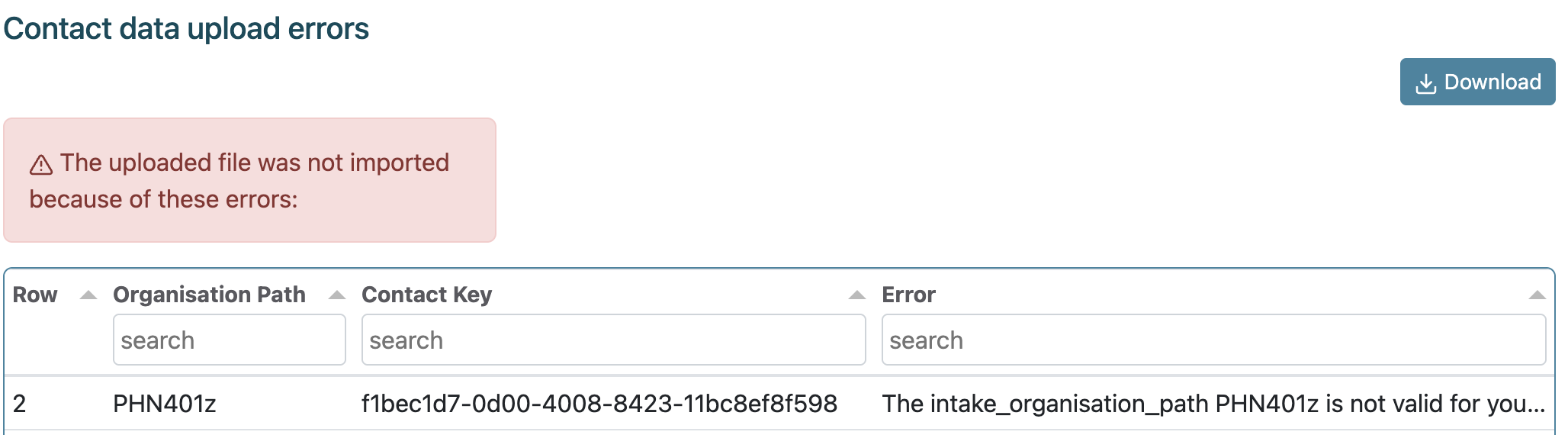
The system will validate the CSV file format and the data in the file. If there are errors, the upload process skips storing the data and will redirect to an error report containing all the errors that it encountered. The screenshot below shows an example of the error report. You can filter the errors and download them.
Important note about contact_key
If you upload data with contact_key filled in, you will be able to re-upload the same data and it will simply overwrite the data when it finds an existing contact_key with a matching value from the uploaded data. If you don't use contact_key (i.e. if you leave that column blank), then it will only ever add records. This means that if you will either have to upload data month by month, or delete all the data and upload all the data again up to the current month.
View uploaded data
Go to Reports > Uploaded contacts.
From this screen you can filter and sort the contact data. You can also download all the data.
Delete uploaded data
You can only delete rows that are selected.
You can select individual rows by clicking somewhere in the row, or select all records by clicking the topmost tickbox in the left-hand column.
Once a row is selected, the Delete selected button will appear at the top right (next to the Download button).